
If you already have candidate information available as a CSV (for example, from the relevant government agency), you can import it all at once.
Candidate imports will be visible immediately to edit, but just like normal edits will not be saved until you click the “save” button.
Prepare the CSV file
Make sure your CSV has a heading called “Name” containing the candidate’s full, official name.
Additionally, the CSV may contain any of the following columns:
- “Group”: Will put the candidate in a group with this name. Candidates with the same value in the “Group” field will be that group together
- “Party”: The name of the candidate’s party affiliation. Values in this field much exactly match the name of a political party you have set up for the election or they will be ignored.
- “Email”: The candidate’s official email address. This is the email that will be used to send candidates their individual survey link.
Import the CSV
In the upper right of the “Candidates” tab, click the “Import/Export” button (only available for some user levels; if you do not have access to this feature, please request it from your organization’s admin or contact support).

Click to “Browse…” to upload your CSV fie.
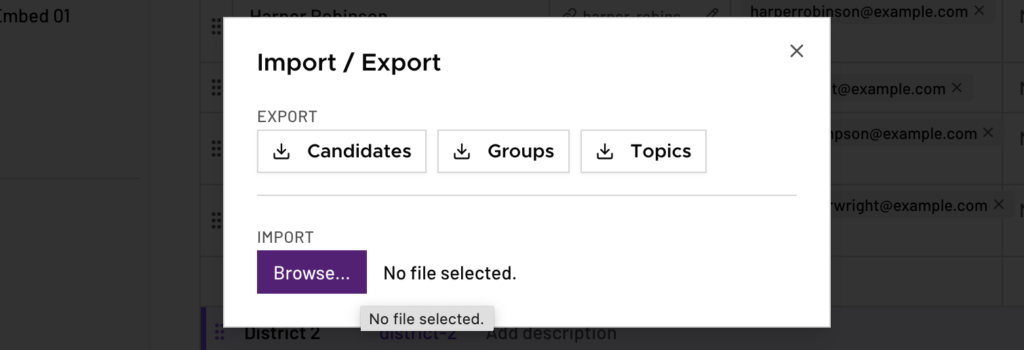
Users who have permissions to replace all the existing candidates can delete all the existing candidates and completely replace them with new ones from the CSV. Since this will delete all candidate information for this race (including any topic responses), you will be asked to type a confirmation message before proceeding.
Exporting candidates
You can export your candidate data as a CSV for use outside of ElectUp.
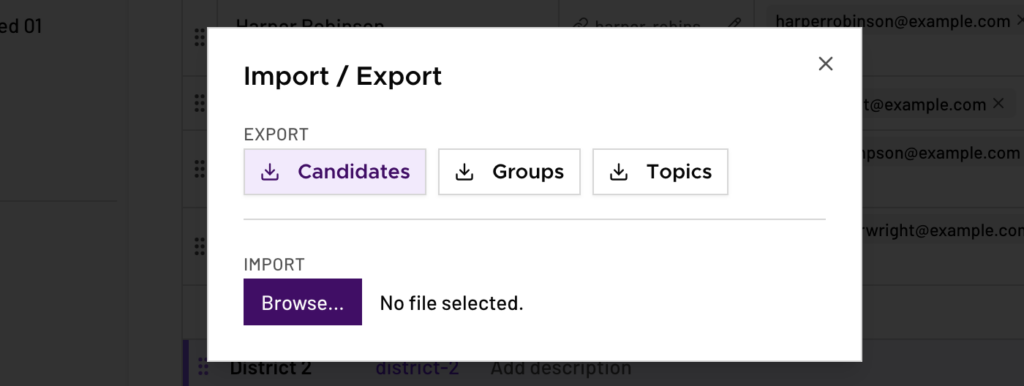
In the upper right of the “Candidates” tab, click the “Import/Export” button (only available for some user levels; if you do not have access to this feature, please request it from your organization’s admin or contact support).
Click on the “Candidates” button in the pop-up to begin your download.
Updating candidates
By default, any imports will update, not replace existing candidates (if you do not use the option to “delete and replace all existing candidates”).
- Candidates are matched by name and group – both must be the same for the candidate to be updated. (So if you need to update a candidate’s name or the group they are in, you will need to do it manually or manually delete the old candidate to avoid a duplicate.)
- Candidates with matching name and group will have the party and email fields updated from new imports. So if you import candidates without emails being filled in (or only partially filled in), you can later do another import with the “email” column filled in and those emails will be applied to existing candidates.